Increase Productivity with Git Worktrees as an Android Developer
Git worktrees are a powerful feature of git for multitasking as an Android Developer.
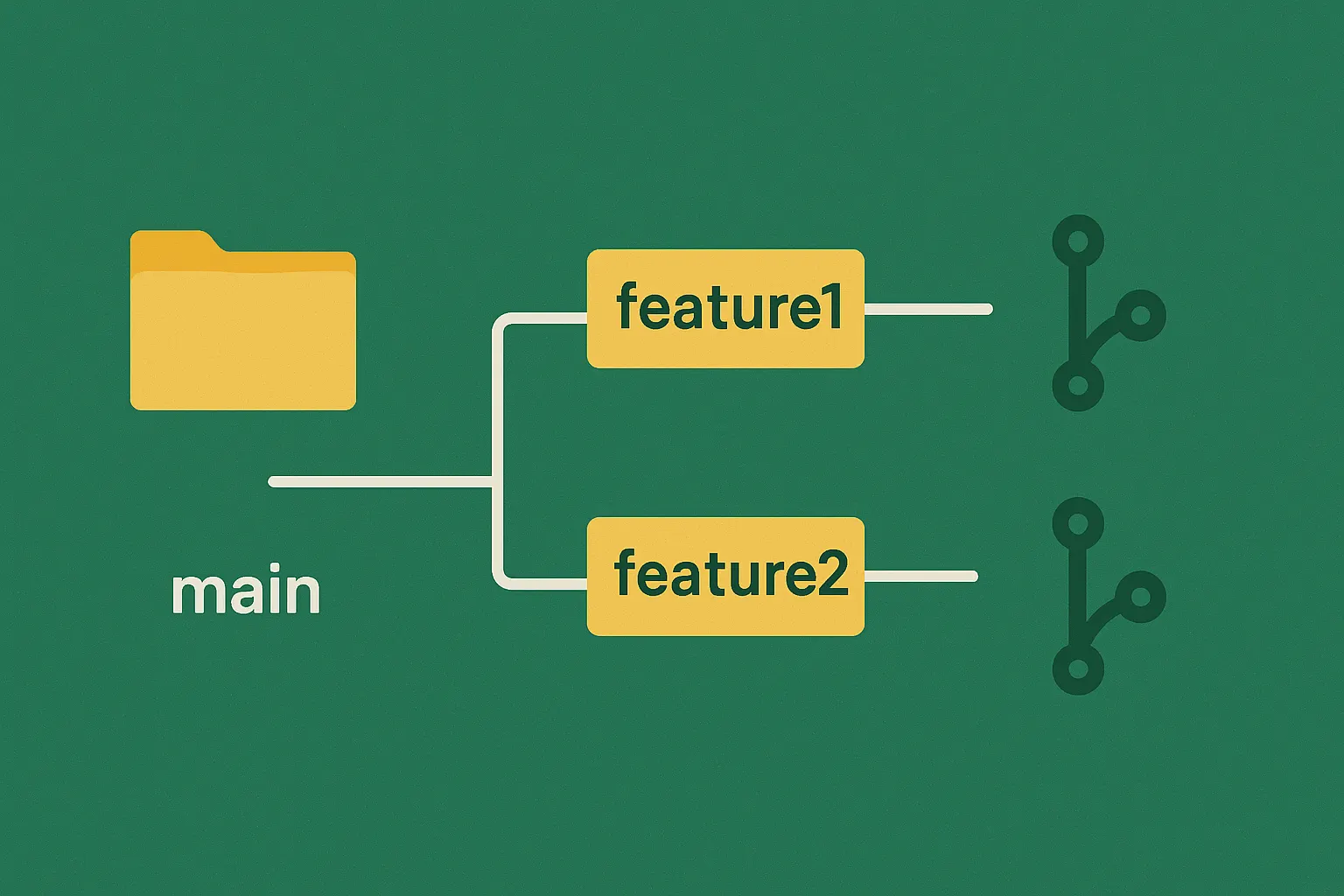
Git worktrees are a powerful feature of git that not many developers know about. They can be used for having multiple working directories open at the same time, without the pain points of other common approaches.
Why would you need multiple working directories?
There are many reasons why having multiple working directories is beneficial. Here are a few common ones:
- Working on two features at the same time: It’s not untypical to have a primary feature/goal, and also use your extra 20% on an important improvement, migration, or refactor.
- Code reviews, QA, bug fixes: You’re in the middle of working on your feature, when you need to change branches to test and review a colleague’s work, or fix an important bug on another feature.
- Running multiple AI agents in parallel: You want to perform several tasks at the same time, without the agents generating conflicts and stepping on each other’s toes.
What about other approaches?
There are other approaches we could use to deal with the scenarios above. Two common ones that come to mind are:
- Switching branches: In a typical git workflow, we create a new branch for each new feature or bugfix. If we need to jump between features, we need to first store or stash any uncommitted changes on the current branch and then check out the other branch. There can only be one checked-out branch per repository, making multitasking very hard.
- Multiple clones of the same repository: To have two branches checked out at the same time, we could clone the same repository twice. While it works, there is more overhead with this approach as each has to maintain its own git history. Sharing local git changes between the two repositories is also not possible. It becomes even more troublesome to maintain when you need more than two clones.
How Do Git Worktrees Solve This?
Git worktrees let you check out multiple branches from the same repository into separate directories. Each worktree has its own working directory with isolated files, while still sharing the same git history.
They are easily managed through simple git commands, making it easy to create new worktrees, keep track of them, and delete them. Because worktrees are copies of the repository, you can open them in Android Studio or any other IDE, like you would any project. To work on different features, you simply switch between multiple IDE windows that are open. No stashing needed.
Why Android Developers Should Care?
- Faster builds: Android builds are slow, and switching branches can cause the gradle build cache to invalidate, forcing longer builds. Each worktree keeps its own build directory, meaning that builds don’t invalidate each other.
- Fast context-switching: Android Studio supports opening multiple worktrees independently as a standalone project. That allows us to have multiple Android Studio windows open, lowering the context-switching cost as it takes almost no effort.
- Running parallel AI agents: Git worktrees are recommended in the Claude Code documentation as a way of running several agents at the same time.
These benefits should increase productivity and make it easier to manage multiple features.
How to Use Git Worktrees?
Using worktrees is simple as there are just three commands to remember.
Creating a new worktree
- Start from your main work directory. This would be your git repository, the folder you have opened in Android Studio.
- Run the following command to create a new worktree:
git worktree add ../myapp-featureA -b feature/A - This will create a new project folder outside of your current directory named
myapp-featureA. The new git directory will have a new branch namedfeature/Achecked-out. - You can now open the new project in another window of Android Studio and work normally there, committing things as needed.
Merging worktree changes
You can normally commit changes inside the worktree to the feature branch that is checked-out. To then get the changes back into the main branch, you have two options:
- push the new branch to the remote and open a merge request
- or go back to the primary directory and merge the worktree branch back to main using
git merge feature/A.
Keeping track of worktrees
To know what worktrees you currently have, you can run git worktree list which will print the list of worktrees, including the main one.
This command can help get the name of the worktree, which is needed to delete it.
Cleaning Up Worktrees
When you’re finished with the worktree, you can remove it by using the git worktree remove ../myapp-featureA command. You might also need to use the --force flag to remove the directory completely.
The name of the worktree is the same as the one you used when creating it. If you forget, you can use the git worktree list command to find it.
Tips and Best Practices
A few useful tips and best practices to keep in mind when creating worktrees:
- Store worktrees outside the project folder to keep things tidy.
- Use meaningful branch and directory names to identify them easily.
- You cannot check out the same branch in multiple worktrees.
- Android Studio supports opening multiple worktrees independently.
- Remove worktrees when you’re done with them.
Conclusion
Git worktrees are a powerful feature of git that makes it easier to multitask. They reduce friction on Android by avoiding rebuild delays and context-switch overhead compared ot switching branches. They are also a great solution for running multiple AI agents in the same codebase without causing conflicts.
Whether they are the right tool for you will depend on your use case. Give them a try and see if they increase your productivity!
Resources: